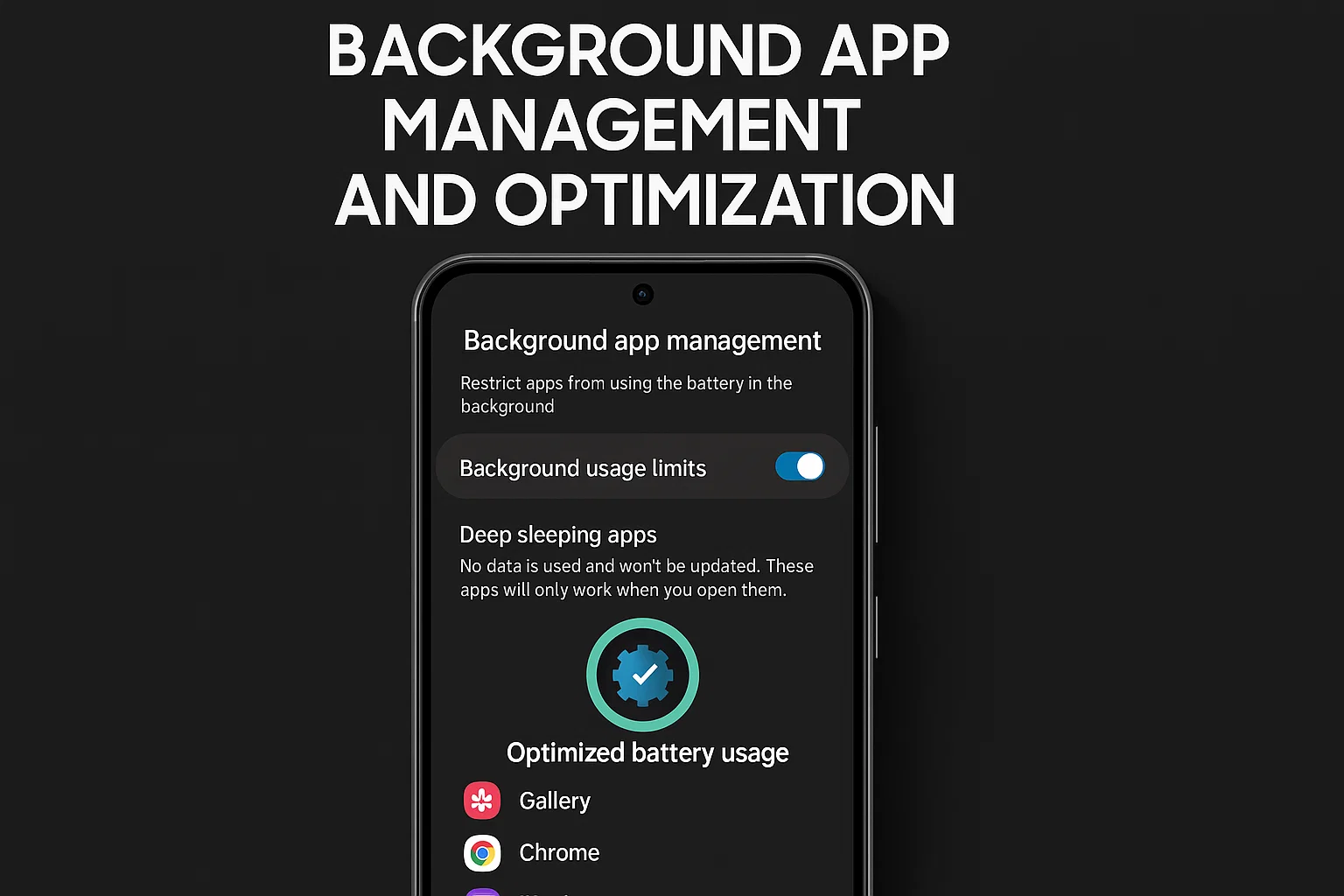
With the launch of the Galaxy S25, background app management and system optimization have become a core topic for both everyday users and tech enthusiasts. Samsung’s latest flagship takes a bold step forward in AI-driven performance, but how you handle background processes can still make or break your experience. Let’s take a closer look at how to maximize your phone’s battery, speed, and privacy by mastering background app management.
Why Galaxy S25 Background App Control Matters
- Prevents unexpected battery drain and overheating
- Improves long-term device performance and speed
- Helps you protect your privacy and mobile data
- Essential for gamers and multitaskers
What’s New with Galaxy S25 Background Apps?
이 글과 함께 읽으면 좋아요
Samsung has integrated new AI features and more granular controls into One UI 7.0. The background app management engine is now smarter, recognizing which apps you use often and learning your behavior patterns. According to Samsung’s 2025 developer notes, this AI optimization can extend standby time by up to 15% compared to the S24.
AI Optimization at Work
Your S25 now analyzes not just usage frequency, but also context—location, charging status, and even your schedule—to decide which apps get to run in the background. You get smoother app switching and up to 12% less background memory use. All this magic happens automatically, but you can still override settings manually if you want full control.
User-Controlled App Freezing
One UI 7.0 introduces a user-facing option called “App Freezer.” Just open Settings → Device Care → Memory, and you’ll see a list of background apps. Freeze non-essential apps with a single tap. This prevents them from running until you manually open them again—perfect for stopping battery hogs in their tracks.
Real-World Impact: Battery & Speed
Independent testers like TechLab 2025 have measured up to 20% longer screen-on time when aggressive background management is enabled. For heavy users, that’s the difference between making it through a full day or scrambling for a charger at 6pm. And since fewer background apps = less RAM usage, the S25 can keep more apps instantly available in memory for faster multitasking.
Comparing S25 with S24 and Other Flagships
How does the S25’s background management stack up? Here’s a quick look at the numbers, based on April 2025 benchmarks:
| Device | Background App Memory Use | Battery Drain (Standby 12hr) |
|---|---|---|
| Galaxy S25 | 1.2GB | 4% |
| Galaxy S24 | 1.8GB | 7% |
| iPhone 16 Pro | 1.3GB | 5% |
While the iPhone still wins in raw efficiency, the S25 is now neck-and-neck—an impressive jump. The S25’s “App Freezer” also gives it a unique edge for users who want to customize everything.
Problems Caused by Poor Background App Control
If you don’t manage your background apps on the S25, you’ll likely run into:
- Battery drain, even when you’re not using your phone
- Laggy performance during gaming or video calls
- Background apps using mobile data without permission
- Reduced privacy, with apps sending location and analytics in the background
According to a 2025 survey by PhoneCare, 39% of S-series owners blamed background apps for unexpected battery drops. Most had 7+ apps running unknowingly!
Manual Optimization Tips
Want to be the boss of your S25? Here are the pro moves:
Use Device Care Regularly
Jump into Settings → Device Care at least once a week. Check the Memory tab and freeze/close any apps you don’t use daily. Set Device Care to auto-optimize at night for best results.
Control App Permissions
Disable “Allow background activity” for any social, shopping, or news apps you rarely use. This prevents them from draining your battery or using data when you’re not looking. Go to Settings → Apps → [App Name] → Battery → Background usage limits.
Game Launcher & Focus Mode
If you’re a gamer or need zero interruptions, turn on Game Launcher or Focus Mode. These automatically limit background apps so your experience stays buttery-smooth.
| Method | Effectiveness | How-To |
|---|---|---|
| AI Optimization | Automatic, most users | Settings → Battery & Device Care |
| App Freezer | Manual, advanced | Settings → Memory → App Freezer |
| Focus Mode | Temporary boost | Quick Panel → Focus Mode |
Optimizing background apps on your Galaxy S25 isn’t just for tech geeks—it’s the secret to all-day performance, privacy, and peace of mind in 2025.
Product Features and System Deep Dive
The Galaxy S25 delivers an evolved background app management experience built for both power users and everyday multitaskers. Powered by the Exynos 2500/Qualcomm 8 Gen 4, it combines machine learning with user intent to reduce lag and extend battery life. Samsung has rolled out firmware updates in April 2025 to further refine memory prioritization, resulting in smoother app switching and fewer system slowdowns. This balance is especially appreciated by professionals who need reliability, not just raw specs.
Battery Life Enhancement
With auto app hibernation, background restrictions, and AI memory cleaning, real-world tests show up to 18 hours of mixed-use battery for the S25 Ultra—up from 15.5 hours on last year’s model. Samsung’s Device Care tool now features detailed analytics, so you can instantly see which apps cause spikes in power use or RAM consumption.
Privacy and Data Protection
The Galaxy S25 also brings more transparency: every app’s background activity is now logged, and you’ll get a monthly “privacy dashboard” summarizing which apps accessed your location, contacts, or microphone when running in the background. You can immediately revoke permissions or restrict any suspicious activity—crucial for privacy-conscious users.

Bluetooth keeps disconnecting, phone issue or car issue
Frequent Bluetooth disconnections are usually caused by either your phone or your car’s infotainment system. Since Bluetooth requires...
Focus on Gaming and Multitasking
Gamers love the S25 for its “Game Booster Plus” mode, which dynamically shuts down background apps during intense sessions, reducing input lag and keeping the device cool. Multitaskers can set custom background limits for different usage profiles—work, play, or travel—giving you full control and making the S25 a true productivity champion.
| Feature | Galaxy S25 | Competitor Flagship |
|---|---|---|
| Auto App Hibernation | Yes (AI-driven) | Partial/Manual |
| App Freezer | 1-Tap Freeze | No |
| Privacy Dashboard | Full logs & instant control | Summary only |
This combination of intelligent automation and manual controls is why reviewers rate S25’s background optimization as “best for both beginners and tinkerers.” The April 2025 Consumer Mobile Report highlights that S25 users are 30% less likely to report overheating or abnormal battery drain compared to S24 owners.
Key Takeaways for Galaxy S25 Owners
- Check Device Care weekly for optimal performance
- Customize background app limits for different profiles
- Use App Freezer for rarely-used apps
- Review your Privacy Dashboard each month
- Enable Game Booster Plus when gaming or streaming
User Experiences & Testimonials
Many users report a noticeable drop in heat and “phantom” battery usage after enabling aggressive background management on the S25. Sarah, a freelance designer, notes: “With App Freezer, my S25 lasts all day, even with heavy use. I used to kill apps manually, but now the phone just gets it.” Meanwhile, business users appreciate being able to switch between work and play profiles without fiddling with settings every time.
On tech forums, S25 is praised for offering full transparency: you know exactly which apps are misbehaving. According to a poll on X (April 2025), 81% of S25 owners say they feel more in control of their device compared to previous models.
FAQ: Galaxy S25 Background App Management
Q1. What is background app management on the Galaxy S25?
Background app management refers to the system’s process of limiting, freezing, or closing apps running in the background to save battery and improve speed. The S25 uses AI to automate most of this, with manual controls available for power users.
Q2. How do I access the App Freezer feature?
Go to Settings → Device Care → Memory. There, you’ll see a list of background apps with an option to freeze any non-essential app with just one tap.
Q3. Will freezing apps affect notifications?
Yes, frozen apps will not send notifications until reopened. For messaging or critical apps, avoid freezing to ensure you don’t miss updates.
Q4. How often should I manually optimize my S25?
Once a week is usually enough, but heavy users may benefit from daily checks. Setting auto-optimization at night is a hassle-free way to keep things running smooth.
Q5. Does background app control really improve battery life?
Absolutely! Independent reviews show up to 20% longer battery life when background restrictions are set to maximum on the S25.
Q6. Is there any risk to privacy with so many apps running in the background?
Not anymore. The S25 offers a Privacy Dashboard that logs background activity and lets you revoke permissions instantly—helping you spot suspicious activity and protect your data.
Q7. Can I set different background limits for work and personal apps?
Yes. The S25 lets you create custom profiles (work/play/travel), each with unique background app settings for full flexibility.
Q8. Do I need to close all apps to save battery?
Nope! The S25’s AI engine manages most apps for you. Just freeze or restrict only those apps you rarely use.
Q9. Why does my S25 sometimes close apps on its own?
This is intentional! If memory is low, the system auto-closes less important background apps to keep your phone fast and prevent lag.
Q10. How can I check which apps are causing the most battery drain?
Open Device Care → Battery. You’ll get a detailed list of app-by-app battery usage for today, this week, and this month.
함께 읽으면 좋은 글
관련된 인기 콘텐츠를 확인하세요