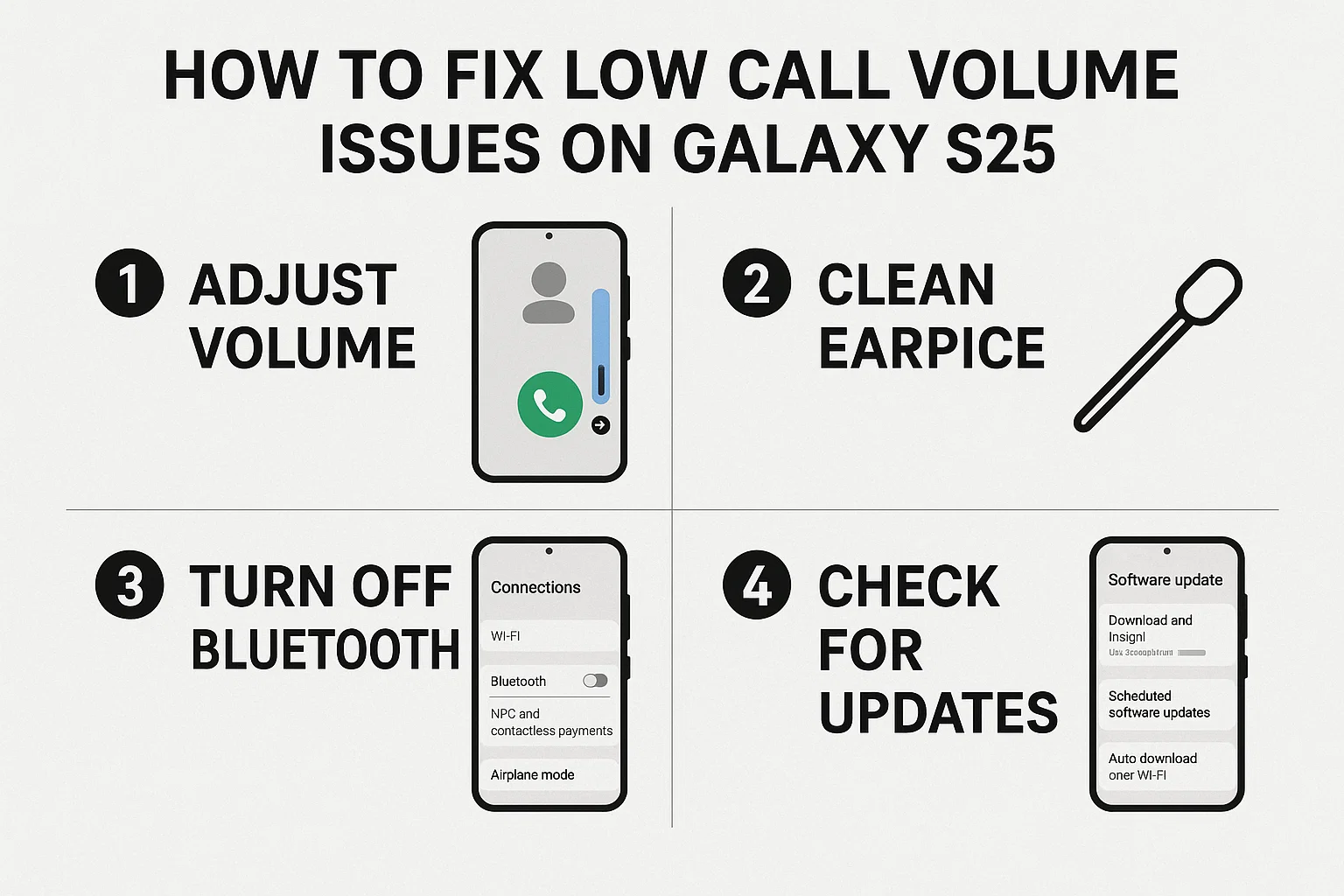

Are you experiencing low call volume on your Galaxy S25? You’re not alone. Many users report difficulty hearing the other person during calls, even with the volume set to maximum. This issue can stem from software glitches, hardware problems, or simple misconfigurations. In this guide, you’ll find practical steps to quickly diagnose and resolve low call volume issues on your Galaxy S25, so you can enjoy crystal-clear calls again.
1. Check Basic Settings Before Anything Else
이 글과 함께 읽으면 좋아요
Sometimes the most obvious solutions work best. Let’s start by checking basic settings and conditions that can cause low call volume on your Galaxy S25. Before moving on to more complex troubleshooting, make sure these factors aren’t the root cause.
1) Confirm In-Call Volume Is Set to Maximum
- During a call, press the volume up button on the side of your phone to set call volume to the highest.
- Make sure you are adjusting the call volume, not the media or ringtone volume.
Many users accidentally adjust the wrong volume type. If you hear a ringtone or notification sound changing, hang up and try again while on a call.
2) Remove Any Phone Case or Screen Protector
- Check if a thick case or misaligned screen protector is covering your earpiece speaker.
- Remove any covers temporarily and test the call volume again.
Cases and screen protectors that cover the top edge of your phone can muffle sound from the earpiece, causing distorted or quiet calls.
3) Clean the Earpiece Speaker
- Use a soft, dry brush or a can of compressed air to gently clean the earpiece area.
- Check for visible dust, lint, or debris blocking the speaker grill.
Even a small amount of dust can lower your call volume significantly. Always clean with care to avoid damaging your Galaxy S25.
2. Update Your Software and Restart the Phone
If basic checks don’t help, your issue might be related to software. Outdated system software or temporary glitches can affect your call experience. Let’s see how to address this quickly before diving into advanced fixes.
1) Restart Your Galaxy S25
- Press and hold the power button, then tap “Restart”.
- This can resolve minor software glitches causing low volume.
A simple restart often fixes unexpected sound issues without the need for deeper troubleshooting.
2) Check for Software Updates
- Go to Settings > Software Update > Download and Install.
- Install any available updates and restart your phone afterward.
Samsung frequently releases updates to address performance and compatibility problems, including call volume bugs.
3) Clear Cache Partition (Advanced Users)
- Turn off your phone, then press and hold the Volume Up + Power buttons together.
- Navigate to Wipe Cache Partition with the volume buttons, select with power button.
- Reboot the device.
Clearing the cache partition will not delete your data, but it can fix random bugs that may cause audio problems.
| Step | Quick Action | Why It Matters | Estimated Time |
|---|---|---|---|
| 1. Increase In-Call Volume | Use volume up during a call | Ensures you’re adjusting the right volume | 10 seconds |
| 2. Remove Accessories | Take off case/protector | Eliminates physical sound blockage | 20 seconds |
| 3. Clean Speaker | Use soft brush or air | Removes dust and lint | 1 minute |
| 4. Update Software | Settings > Software Update | Fixes bugs via latest firmware | 5-10 minutes |
Following these steps can resolve most minor Galaxy S25 call volume issues. Next, let’s look at audio settings and hardware checks for persistent problems.
3. Adjust Sound Settings and Test with Safe Mode
If call volume is still low after software updates and basic cleaning, some system settings or apps might be interfering with your sound. Here’s how to check.
1) Turn Off Bluetooth and Disconnect Audio Devices
- Swipe down and disable Bluetooth in the quick panel.
- Check if audio is routed to a wireless headset or speaker.
Your phone may be sending call audio to a paired device instead of the internal earpiece.
2) Reset Sound Settings to Default
- Go to Settings > Sounds and Vibration > Volume and reset to default values.
- Check Sound Quality and Effects for customizations that lower volume.
Equalizer or sound effects set too low can affect call clarity and loudness.
3) Test Call Volume in Safe Mode
- Press and hold the power button, then tap and hold “Power off” to launch Safe Mode.
- Make a test call—if volume improves, a third-party app may be causing the issue.
Safe Mode loads only system apps, helping you isolate software conflicts that cause low call volume.
Next, we’ll explore advanced hardware troubleshooting and warranty options for Galaxy S25 users who still face low call volume even after trying all settings and software steps above.
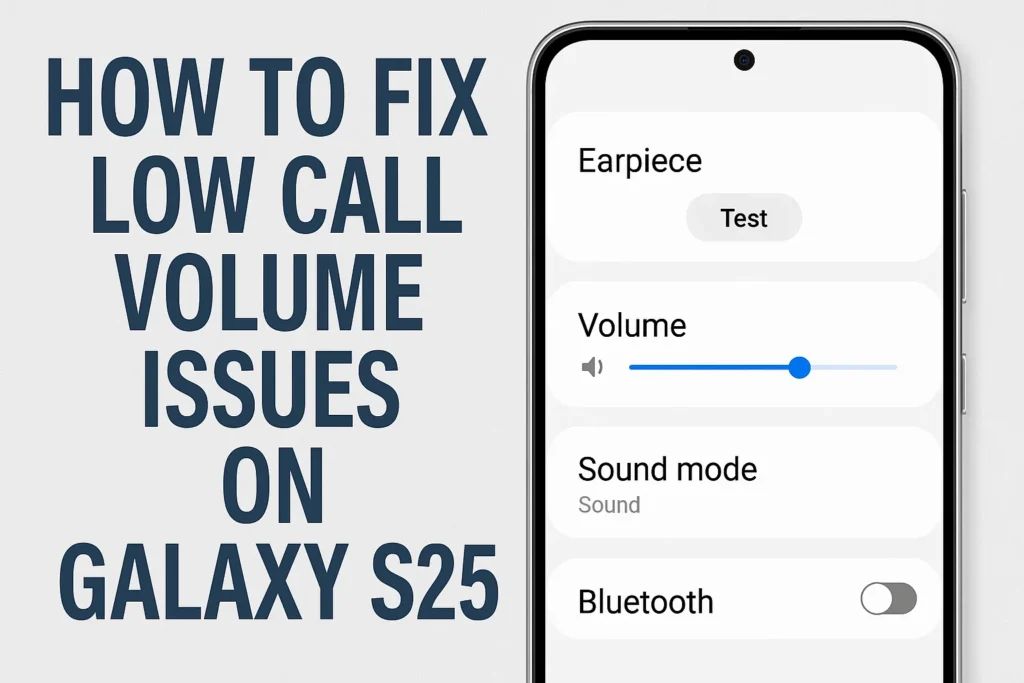
4. Advanced Hardware Troubleshooting and Repair Options
If you’ve tried all the basic and software fixes but your Galaxy S25 still has low call volume, it’s time to consider possible hardware problems. Here’s how to identify and address potential physical issues before heading to a repair center.
1) Test with Wired or Wireless Earphones
- Plug in a set of earphones or connect Bluetooth earbuds.
- Make a call and compare the volume through the earphones vs. the internal earpiece.
If the call volume is normal on earphones but low from the earpiece, your phone’s internal speaker may be faulty.
2) Use the Samsung Members Diagnostic Tool
- Open the Samsung Members app on your device.
- Go to Support > Phone Diagnostics > Speaker and run the built-in test.
- Follow on-screen instructions to check both speaker and microphone function.
The diagnostic tool can help you identify whether your S25’s hardware is functioning properly. If it fails the test, repair is likely needed.
3) Check for Water or Moisture Damage
- Inspect your phone for signs of water damage, such as moisture under the screen or around ports.
- If you suspect water exposure, immediately power off the device and avoid charging until it’s completely dry.
Water or humidity inside your phone can permanently damage the earpiece speaker, resulting in persistent low volume.
| Hardware Check | How to Perform | What It Reveals | Next Step |
|---|---|---|---|
| Earphone Test | Call with earphones | Confirms if only earpiece is affected | Service center if earpiece is faulty |
| Samsung Members Diagnostic | Run built-in app test | Checks speaker and mic | Repair or warranty claim if fail |
| Moisture Inspection | Look for water inside | Identifies possible liquid damage | Dry device, seek repair |
If none of the above steps restore your call volume, professional repair is recommended. Next, let’s review warranty options and tips for visiting a Samsung service center.

Bluetooth keeps disconnecting, phone issue or car issue
Frequent Bluetooth disconnections are usually caused by either your phone or your car’s infotainment system. Since Bluetooth requires...
5. Warranty, Service Center, and Repair Tips
If your Galaxy S25 is still under warranty, or if you purchased Samsung Care+, you may be eligible for free or discounted repairs. Here’s how to make the most of your warranty coverage and avoid unnecessary costs.
1) Locate Your Nearest Samsung Service Center
- Visit the Samsung official website and find your closest authorized repair center.
- Book an appointment online for faster service.
Bring your phone, proof of purchase, and any warranty documents for smooth processing.
2) Prepare Your Phone for Repair
- Back up all important data to Samsung Cloud or Google Drive.
- Remove your SIM and microSD cards for safety.
Service centers often need to reset your device or open it for inspection, so backing up data is crucial.
3) What to Expect at the Service Center
- The technician will inspect your phone, run diagnostics, and confirm the issue.
- If covered by warranty, earpiece or speaker replacement is typically free.
- Out-of-warranty repairs may have a fee; ask for a quote before agreeing to service.
Always request a detailed service report and keep the repair receipt for future reference.
| Repair Option | Cost | What’s Included | How to Use |
|---|---|---|---|
| Samsung Warranty | Free (with valid coverage) | Parts & Labor | Visit authorized service center |
| Samsung Care+ | Discounted (with service plan) | Extended coverage for accidental damage | File a claim online or in-app |
| Paid Repair | Variable (based on part & labor) | Original or third-party parts | Request quote at service center |
Visiting a Samsung service center is the safest way to restore your phone’s call volume if hardware is to blame. Up next, we’ll answer some common questions about Galaxy S25 call volume issues and related solutions.
6. Additional Tips to Prevent Future Call Volume Issues
To avoid running into the same low call volume problem again, use these preventive tips and best practices for your Galaxy S25.
1) Keep Your Phone Clean and Dry
- Regularly clean the earpiece and speaker grills.
- Avoid using your phone in very humid or dusty environments.
Routine cleaning prevents dust buildup, while keeping your phone dry avoids long-term speaker damage.
2) Only Install Trusted Apps
- Download apps only from the Google Play Store or Galaxy Store.
- Avoid unknown calling or sound enhancer apps, as these can cause conflicts.
Untrusted apps may interfere with audio output and system functions, leading to persistent issues.
3) Update Your Phone Regularly
- Always install the latest security patches and system updates.
- Check for app updates, especially for your Phone and Contacts apps.
Updated software helps keep your device performing optimally and secure from bugs that could affect sound quality.
7. When to Replace Your Phone
If your Galaxy S25 is several years old and the repair cost is high, it may be time to consider an upgrade. Here’s when replacement is the smarter option:
1) Out-of-Warranty with Expensive Repairs
- If repair costs exceed 50% of your phone’s value, replacement is recommended.
Investing in a new phone ensures continued software support, better call quality, and enhanced features.
2) Recurring Issues Despite Repairs
- If call volume or other problems return after repair, your device may have deeper issues.
Repeated hardware failures are a strong sign your device is reaching the end of its useful life.
3) Desire for New Features or Improved Performance
- Latest Galaxy models offer better speakers, improved mics, and enhanced sound technology.
Upgrading provides not only a solution to call volume but a smoother all-around experience.
Next, see the most frequently asked questions about Galaxy S25 call volume issues.
How to Fix Low Call Volume Issues on Galaxy S25 Frequently Asked Questions
Q1. Why is my Galaxy S25 call volume so low even at max?
This is commonly caused by blocked earpiece grills, software bugs, or accidentally lowering a different volume (like media instead of call). Try cleaning the earpiece, restarting your phone, and making sure you adjust the call volume during an actual call.
Q2. How do I reset all sound settings on the Galaxy S25?
Go to Settings > Sounds and Vibration and tap on Volume. Scroll to the bottom and tap Reset sound settings. This will return all sound levels and audio effects to default values, which can resolve sound conflicts.
Q3. What should I do if my Galaxy S25 earpiece speaker fails the diagnostic test?
If your device fails the Samsung Members diagnostic for the earpiece speaker, it is likely a hardware issue. Contact a Samsung service center for professional inspection and possible repair or replacement.
Q4. Can a software update really fix low call volume?
Yes, software updates often include bug fixes that can resolve call volume problems, especially after a new OS version is released. Always keep your device and apps up-to-date for the best experience.
Q5. Is there a way to boost call volume beyond factory settings?
Samsung does not officially support increasing call volume beyond safety limits. Some third-party apps claim to boost sound, but they can risk damage or software instability. Always use official solutions first and be cautious with unknown apps.
함께 읽으면 좋은 글
관련된 인기 콘텐츠를 확인하세요