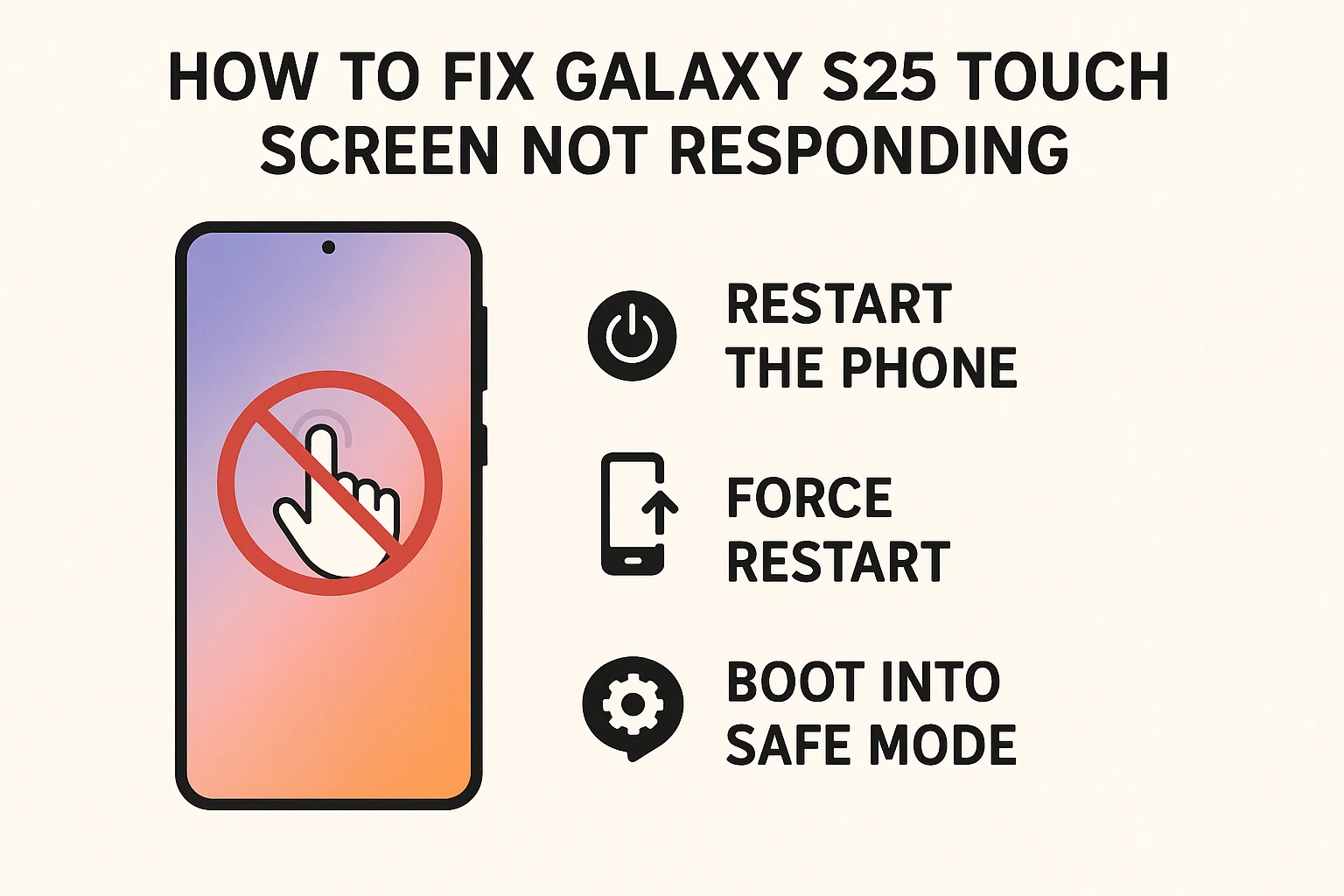
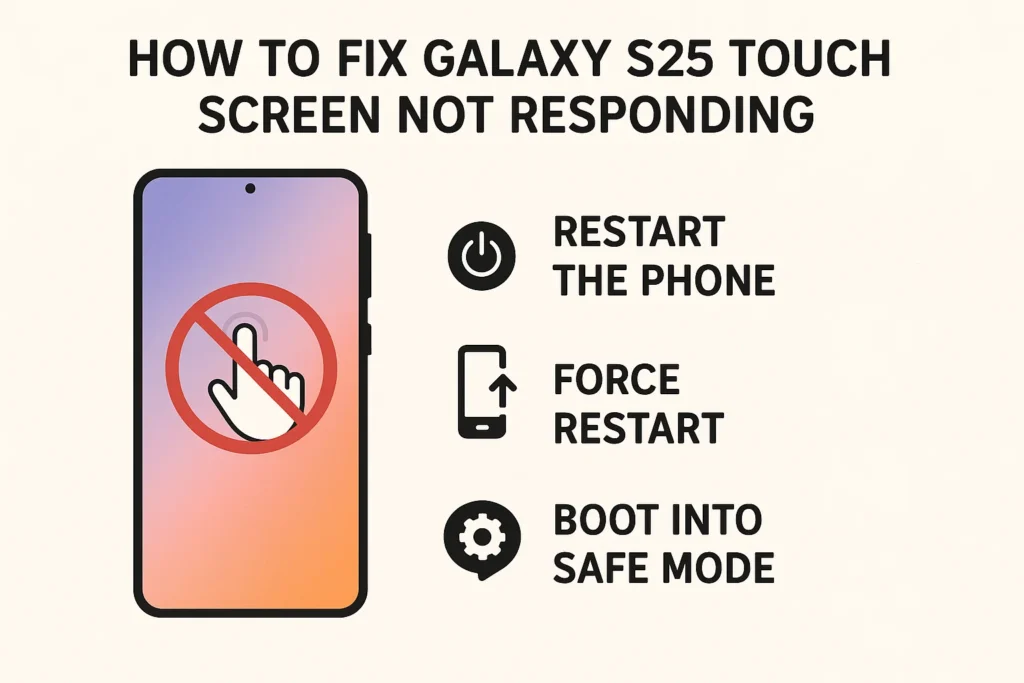
When your Galaxy S25 touch screen suddenly stops responding, it can be both frustrating and inconvenient. In this guide, you’ll find practical ways to resolve unresponsive display issues, from quick fixes to advanced troubleshooting. Whether the problem is caused by software glitches, physical damage, or something else, this step-by-step approach will help you regain full control of your device without unnecessary stress. Take a deep breath—most touch screen issues can be fixed at home, and you’ll soon be swiping and tapping with ease.
1. Common Causes of Galaxy S25 Touch Screen Failure
이 글과 함께 읽으면 좋아요
1) Recent Software Updates or App Installs
One of the leading reasons for touch screen problems on the Galaxy S25 is recent software updates or newly installed apps that conflict with the system. Sometimes, a buggy app or a faulty update can interfere with screen responsiveness. If your S25 was working fine before an update or app installation, consider this the likely cause. Start by restarting your device, as this can clear minor conflicts. If the problem persists, try booting in Safe Mode to see if a third-party app is causing the issue. Safe Mode temporarily disables all non-essential apps, making it easier to isolate the problem.
2) Physical Damage or Screen Protector Issues
Even minor drops or pressure can impact the Galaxy S25’s touch sensitivity. Sometimes, a poorly installed screen protector or accumulated dust under the protector will cause areas of the screen to stop working. Inspect your device under good lighting and gently remove the screen protector if you suspect it’s interfering with touch response. Also, check for visible cracks or damage on the display. If the problem began after a drop or impact, hardware damage might be involved and may require professional repair.
3) Overheating and Environmental Factors
The Galaxy S25 touch screen can become less responsive if the device gets too hot, cold, or exposed to high humidity. Overheating often occurs when using resource-intensive apps or while charging. If your phone feels warm to the touch, let it cool down before troubleshooting further. Environmental factors like water exposure or extreme temperatures can also temporarily affect touch performance. Ensure your phone is dry and used within recommended temperature ranges.
Quick Checks for Touch Screen Issues
- Restart your Galaxy S25
- Remove any screen protectors or cases
- Check for recent app or system updates
- Inspect for physical or water damage
- Let your device cool down if overheated
2. Step-by-Step Troubleshooting for Unresponsive Touch
1) Soft Reset and Forced Restart
If your S25’s touch screen is completely unresponsive, start with a soft reset or forced restart. Press and hold the Power and Volume Down buttons simultaneously for about 10 seconds until the Samsung logo appears. This will reboot your phone and often resolves temporary software freezes. Unlike a factory reset, this process won’t erase your data. If the device restarts but the touch screen still does not work, move on to the next step.
2) Boot into Safe Mode
To check if a third-party app is causing the issue, boot your Galaxy S25 into Safe Mode. Power off your phone, then turn it back on and hold the Volume Down button while it boots up. If the touch screen responds normally in Safe Mode, an app you installed is likely the culprit. Uninstall recently added or suspicious apps one by one, rebooting after each removal to test the screen. Safe Mode is a powerful way to identify and eliminate software conflicts without losing your data.
3) Test Touch Screen in Diagnostic Mode
Samsung devices come with built-in diagnostic tools for hardware testing. Open the Phone app, dial *#0*# and select “Touch” from the menu. This will help you check for dead zones or areas that aren’t registering input. If you notice only certain parts of the screen are unresponsive, hardware repair may be necessary. If the touch test passes, but you still have issues, the problem is most likely software-related.
| Step | Basic Fix | Advanced Solution |
|---|---|---|
| Restart | Soft/Forced Restart | Safe Mode Boot |
| Check Apps | Uninstall Recent Apps | Factory Reset |
| Screen Issues | Remove Protector | Service Center Visit |
3. Advanced Solutions and When to Seek Help
1) Back Up and Factory Reset
If none of the previous steps resolve the issue, back up your data and perform a factory reset. Go to Settings > General Management > Reset > Factory Data Reset. This will erase all your data and restore the device to its original state, so make sure to save important files first. A factory reset often fixes stubborn software problems but should be a last resort.
2) Update Firmware or Restore via Smart Switch
An outdated or corrupted operating system can cause touch issues. Check for the latest software updates in Settings > Software Update. If your device won’t respond at all, connect it to a PC and use Samsung’s Smart Switch software to attempt a firmware restore. This process can reinstall the operating system and sometimes recover a bricked device.
3) Professional Repair and Warranty Service
If you’ve tried all troubleshooting methods and your Galaxy S25’s touch screen still won’t work, the problem could be hardware-related. Visit an authorized Samsung Service Center for professional diagnostics and repair. If your phone is under warranty and the issue is not due to accidental damage, you may qualify for a free repair or replacement. Don’t attempt to open or repair the phone yourself, as this can void your warranty and lead to more problems.
Summary of Solutions for Galaxy S25 Touch Screen
- Restart and remove accessories first
- Test in Safe Mode and run diagnostics
- Update or restore software as needed
- Back up and factory reset as a last step
- Contact Samsung Service Center if issues persist
4. Real-World Scenarios: Applying the Right Fix for Your Galaxy S25
1) When Only Part of the Screen Responds
If your Galaxy S25’s touch screen responds in some areas but not others, this usually points to localized hardware damage or interference from debris under a screen protector. Try removing any screen protectors and cleaning the screen with a soft, lint-free cloth. If there are visible cracks or the unresponsive area does not change after cleaning, you’ll likely need a professional display replacement. Some users report temporary improvement after a restart or gentle tapping, but these are short-term solutions—do not attempt to apply excessive pressure, as this can worsen the damage.

Bluetooth keeps disconnecting, phone issue or car issue
Frequent Bluetooth disconnections are usually caused by either your phone or your car’s infotainment system. Since Bluetooth requires...
2) Touch Screen Stops Working After Charging
Occasionally, charging cables, power sources, or third-party chargers can interfere with touch sensitivity. If the touch screen fails only when plugged in, try using an original Samsung charger and cable. Power surges or incompatible accessories can disrupt the S25’s touch input. If the problem disappears when the charger is unplugged, replace any non-official charging accessories and avoid using the phone during charging for extended periods.
3) Intermittent Freezing During App Usage
Random freezing or delayed touch response is often triggered by background apps using excessive resources or software bugs. Check for recent updates to problematic apps or remove unused apps entirely. Regularly clear your cache via Settings > Device Care > Storage > Clean Now. If you experience this issue only in certain apps, uninstall and reinstall those apps, and report persistent problems to the app developer for further troubleshooting.
When to Seek Professional Help
- Visible cracks, water damage, or burn-in lines
- Touch fails in Safe Mode or after factory reset
- Persistent issues after software and accessory changes
- Device under warranty and eligible for service
- Diagnostic tool shows dead zones on the display
5. User Experiences and Proven Tips from the Community
1) Solving Problems with System Updates
Many Galaxy S25 users have resolved their touch screen problems by simply updating their system firmware. Visit Settings > Software Update regularly, as Samsung frequently releases patches to address touch and display bugs. If you receive a new update, install it over Wi-Fi and restart the device afterward. Those who are part of the Samsung Members Community often report that “minor glitches” disappear after applying official updates. Always backup your data before updating.
2) Backing Up Important Data Before Major Fixes
It’s crucial to protect your photos, messages, and documents before attempting any advanced fixes such as a factory reset or firmware recovery. Use Samsung Cloud or Google Drive to back up all essential information. If the screen is totally unresponsive, connect the S25 to a computer using Samsung Smart Switch to access and transfer data before proceeding with repairs.
3) Preventing Future Touch Screen Issues
Keep your S25’s software and apps updated, use only high-quality or original accessories, and avoid exposing your phone to extreme environments. Install screen protectors carefully, ensuring no air bubbles or dust are trapped underneath, as these can impact touch performance. Regularly restart your phone and avoid installing unnecessary apps. These small habits go a long way in maintaining the Galaxy S25’s touch screen health.
| Situation | DIY Solution | When to Visit Service Center |
|---|---|---|
| Partial Touch Not Working | Remove screen protector, clean screen | Display replacement needed |
| No Response When Charging | Use original charger, test with different cables | Motherboard or charging port inspection |
| Frequent Freezes in Apps | Update/delete apps, clear cache | Full software reinstallation |
Checklist: What to Do When Touch Stops Working
- Identify if the issue is software or hardware-related
- Test after removing accessories and cleaning the screen
- Boot in Safe Mode and run diagnostics
- Backup your data before any resets
- Don’t hesitate to contact Samsung Support for persistent issues
Galaxy S25 Touch Screen Not Responding: Frequently Asked Questions
Q1. Why did my Galaxy S25 touch screen suddenly stop working?
Sudden touch screen failure on the Galaxy S25 often results from software glitches, faulty updates, or third-party app conflicts. Physical factors like drops, water exposure, or a poorly installed screen protector can also cause this issue. If the problem began after an update or app installation, try restarting or booting into Safe Mode to diagnose the source quickly.
Q2. Can I fix an unresponsive Galaxy S25 screen without visiting a service center?
Yes, many touch screen issues can be fixed at home. Start by removing accessories, restarting the phone, and checking in Safe Mode. If these steps don’t help, running diagnostic tests or performing a factory reset may solve the problem. However, if the screen remains unresponsive after these steps or has visible damage, professional service is recommended.
Q3. What should I do if my S25 only works in Safe Mode?
If your S25’s touch screen responds normally in Safe Mode, the issue is likely caused by a recently installed app. Uninstall apps added right before the problem started, then reboot normally to check if the problem is resolved. If you’re unsure which app is to blame, remove apps one by one or perform a factory reset after backing up your data.
Q4. Will a factory reset erase all my data, and is it safe?
A factory reset will erase all data from your device, including apps, messages, and photos. Always back up important files to Samsung Cloud or Google Drive before proceeding. A factory reset is generally safe and often resolves stubborn software issues, but should only be used as a last resort if other solutions have failed.
Q5. Is touch screen repair covered under Samsung warranty?
If your Galaxy S25 is still under warranty and the screen issue isn’t caused by physical or liquid damage, Samsung typically covers repair or replacement. Visit an authorized service center for an official diagnosis. Attempting to repair the device yourself may void your warranty, so always check your coverage before acting.
함께 읽으면 좋은 글
관련된 인기 콘텐츠를 확인하세요