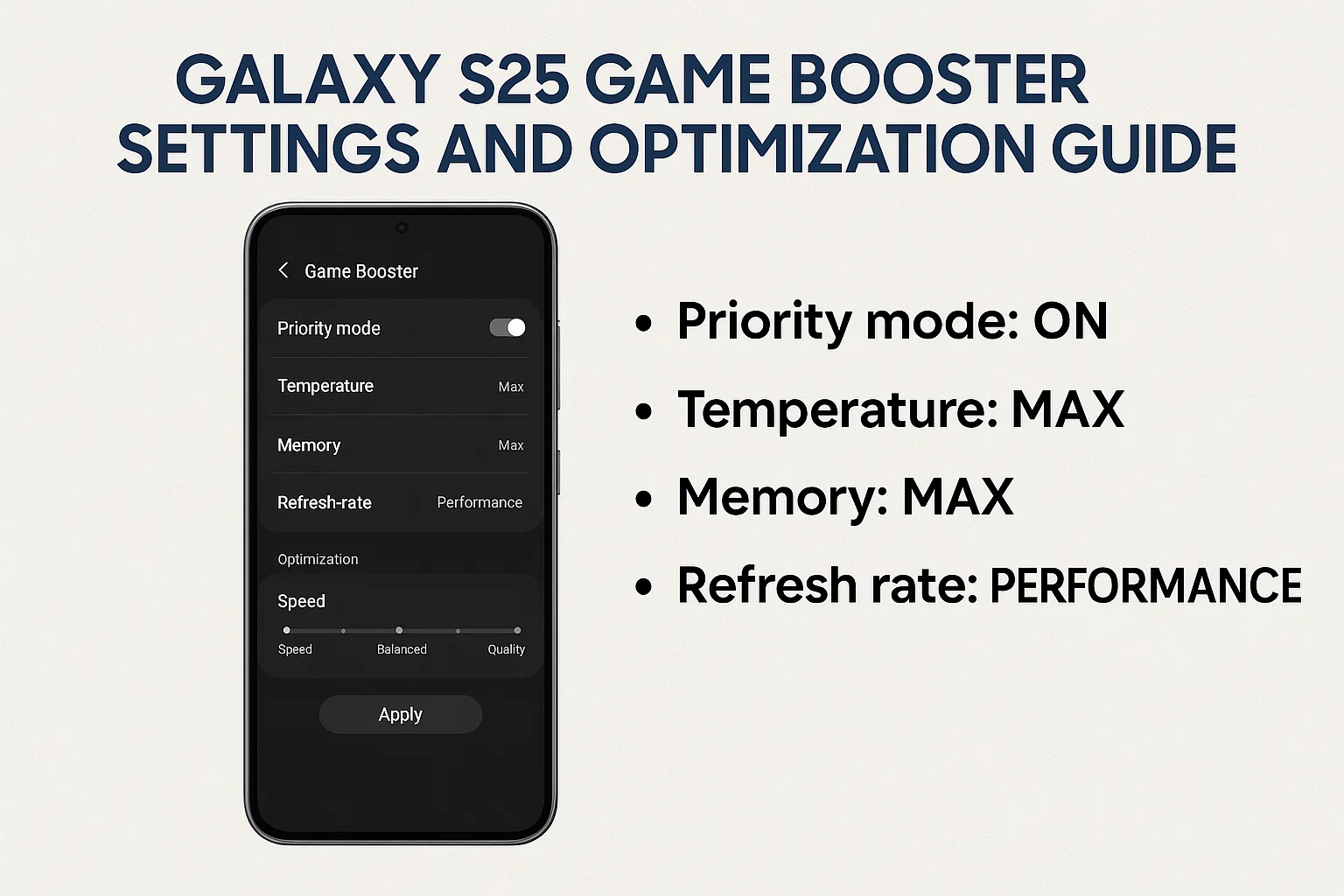
If you want to make the most of your Galaxy S25 while gaming, understanding the Game Booster settings and how to optimize them is essential. Fine-tuning these features can lead to smoother gameplay, reduced lag, and improved battery efficiency. On this page, you’ll find a practical, step-by-step breakdown to help you customize your gaming experience for the latest Galaxy S25 series. Get ready to unlock peak performance without missing a beat—your victories might just come down to the right tweak!
1. Key Galaxy S25 Game Booster Features Explained
이 글과 함께 읽으면 좋아요
1) Game Performance Profiles
Galaxy S25’s Game Booster lets you choose performance profiles tailored to your play style. The primary options are Focus on Performance, Balanced, and Save Power. Selecting “Focus on Performance” increases CPU and GPU resources for top frame rates, but may cause higher battery drain and temperature. “Balanced” is recommended for most users, balancing smooth graphics and device longevity. “Save Power” mode extends playtime if you’re away from a charger, but you may notice some reduced visual quality.
2) Advanced Temperature & Battery Controls
The S25 introduces improved real-time monitoring for both temperature and battery. Under Game Booster, you can toggle Temperature Management to prevent overheating during intense sessions. “Battery Saver” is now more intelligent, learning your gaming habits and dynamically adjusting settings to prolong play. Remember, higher settings may cause the device to warm up; regular breaks are encouraged for both you and your phone.
3) In-Game Toolkits & Priority Mode
Tap the Game Booster panel during play to access tools like Frame Rate Counter, Screen Recorder, and Priority Mode (which blocks notifications and optimizes network traffic for your game). Enabling Priority Mode can prevent annoying interruptions, while the FPS counter helps diagnose performance issues in real time.
Quick Summary: Galaxy S25 Game Booster Essentials
- Choose the right performance mode for your needs
- Use temperature and battery controls to avoid overheating
- Leverage in-game toolkits for uninterrupted gameplay
- Enable Priority Mode to focus and reduce lag spikes
2. Best Settings for Different Game Genres
1) FPS, MOBA, and Competitive Titles
For first-person shooters and eSports games, set Focus on Performance. Turn on Frame Rate Stabilization and keep background apps closed via Game Booster’s memory management. Use Touch Sensitivity boost for rapid reactions. Adjust brightness and sound profiles to fit your gaming environment, but avoid maxing out volume or screen brightness for battery life.
2) RPGs and Adventure Games
“Balanced” mode works well for RPGs and story-driven games, offering immersive visuals with stable temperatures. Enable Adaptive Performance to let your S25 optimize resources based on scene complexity. If you’re gaming for long periods, periodically enable Battery Saver and lower graphics where possible to reduce eye strain and extend playtime.
3) Casual and Puzzle Games
Most casual games don’t require maximum resources. Set to Save Power or “Balanced” mode. You can safely turn off background process restrictions for less demanding games to allow notifications or multitasking. Use Blue Light Filter if you play before sleep for eye comfort.
| Setting | Performance Games | RPG/Adventure | Casual/Puzzle |
|---|---|---|---|
| Performance Profile | Focus on Performance | Balanced | Save Power |
| Battery Saver | Off | Adaptive | On |
| Touch Sensitivity | High | Normal | Normal |
| Notifications | Priority Mode | Silent | Allow |
3. Troubleshooting & Advanced Tips for S25 Gamers
1) Reducing Lag and Stutter
Lag can result from overheating, background activity, or unstable networks. First, activate Priority Mode and close unnecessary apps. Lower game resolution or frame rate if issues persist. Keep your phone on a hard, cool surface during play and avoid charging while gaming for maximum stability.
2) Enhancing Battery Longevity
Regularly monitor battery health via Device Care settings. Enable Battery Protection if you frequently game while plugged in. Avoid high-brightness, and use dark mode where possible. For marathon sessions, consider a power bank instead of continuous wall charging to keep battery cycles healthy.
3) Updates and App Compatibility
Keep both your system software and games updated. Game Booster itself receives regular updates from Samsung, sometimes adding new features or improving performance profiles. Check Galaxy Store for updates, and always restart your device after major updates to clear system cache and ensure smooth performance.
Top Tips for S25 Game Optimization
- Update Game Booster and all games regularly
- Close background apps and enable Priority Mode
- Use the right profile for each game type
- Take breaks to avoid overheating and preserve battery
- Customize toolkit for your own comfort and needs
4. Real-World Scenarios: S25 Game Booster Customization
1) Optimizing for Mobile Tournaments
When entering a mobile tournament, every millisecond counts. Switch to Focus on Performance and activate both Touch Sensitivity and Frame Rate Counter before your match begins. Close all apps except your game and use Priority Mode to silence notifications and minimize latency. Lower brightness and turn on Airplane Mode with Wi-Fi if you’re on a stable network—this can further reduce outside interference. Always check your battery and temperature status during breaks, and consider using a cooling pad for long sessions. Small details often make the difference between winning and losing in competitive play.
2) Battery Saving Setup for Long Commutes
For those gaming on the move, battery preservation is crucial. Select the Save Power mode in Game Booster. Lower your graphics settings, reduce screen brightness, and enable Battery Saver under both system and Game Booster menus. Close all unnecessary background apps and turn off vibration to save more juice. Offline games are best for weak network conditions, but if you must play online, switch your network mode to LTE for better battery efficiency compared to 5G. A portable power bank is also recommended to extend your playtime without risking battery health.

Bluetooth keeps disconnecting, phone issue or car issue
Frequent Bluetooth disconnections are usually caused by either your phone or your car’s infotainment system. Since Bluetooth requires...
3) Streaming and Content Creation Setup
If you stream gameplay or create content, the S25 offers robust tools. Use Game Booster’s Screen Recorder for high-quality captures. Set your performance mode to Balanced to prevent overheating during long streams. Connect headphones to monitor your audio without disturbing others, and keep Priority Mode on to avoid unexpected notifications in your recordings. For smoother uploads, ensure you’re connected to high-speed Wi-Fi. It’s a good idea to test record short clips and check both audio and video quality before going live.
| Scenario | Key Settings | Battery Impact | Network |
|---|---|---|---|
| Mobile Tournament | Focus on Performance, Touch Sensitivity, Priority Mode | High | Wi-Fi or LTE (Airplane Mode) |
| Long Commute | Save Power, Low Brightness, Battery Saver | Low | LTE preferred |
| Streaming/Content | Balanced, Screen Recorder, Priority Mode | Medium | High-Speed Wi-Fi |
5. User Stories and Real Feedback from S25 Gamers
1) Competitive Players: Pushing the Limit
Experienced mobile gamers have noted that maximizing the S25’s Game Booster settings can help maintain stable frame rates during intense matches. Using “Focus on Performance” and regularly cleaning background tasks, they report fewer drops in FPS and faster touch response, crucial for ranked gameplay. Some users also highlight the importance of using a fan or keeping the phone out of its case for better cooling during marathons.
2) Casual Gamers: Comfort and Convenience
For everyday gamers, “Balanced” mode strikes the best compromise. Several users have praised the improved battery life and lower heat output. Features like blue light filter and custom audio profiles make long sessions comfortable, especially for puzzle and simulation titles.
3) Streamers and Creators: Reliable Tools
Content creators appreciate the S25’s stable screen recording, even when multitasking. Enabling Priority Mode ensures clean, uninterrupted footage. Most recommend updating the Game Booster and streaming apps before major broadcasts to avoid compatibility issues.
S25 Game Booster: Real-World Takeaways
- Adjust your Game Booster profile for your current gaming scenario
- Competitive players benefit most from high-performance settings
- Casual users should prioritize comfort and battery life
- Streamers rely on Priority Mode and stable Wi-Fi for best results
- Regular updates help avoid compatibility headaches
Galaxy S25 Game Booster FAQ
Q1. How do I enable Game Booster on my Galaxy S25?
Simply launch any mobile game, then swipe up from the bottom or tap the floating icon to reveal the Game Booster panel. Here, you can access performance profiles, Priority Mode, and advanced settings without leaving your game.
Q2. What’s the best Game Booster profile for battery saving?
Select Save Power mode. This profile reduces background activity, lowers screen brightness, and optimizes CPU/GPU output for extended gaming time while minimizing battery drain.
Q3. How do I reduce lag or overheating during intense gameplay?
Activate Priority Mode, close unnecessary apps, and lower your graphic settings in-game. Take breaks to cool the device and consider gaming in a cooler environment. If problems persist, check for software updates.
Q4. Can I customize notification settings during gameplay?
Yes, via the Game Booster panel, enable Priority Mode to block calls and notifications. You can customize which apps are allowed to send notifications while gaming for total focus.
Q5. How often should I update Game Booster or my games?
Check for updates at least monthly. Samsung and game developers frequently release performance improvements and bug fixes. Always restart your device after significant updates for the smoothest gameplay.
함께 읽으면 좋은 글
관련된 인기 콘텐츠를 확인하세요