If your Galaxy S25+ isn’t showing notifications properly, you’re definitely not alone. Issues like delayed alerts, missing banners, or app notifications not popping up on the lock screen can seriously disrupt your day. By following this guide, you’ll understand the notification system, identify key problems, and apply the most effective solutions for your Samsung device. You’ll also learn how to prevent these issues in the future, ensuring that you never miss an important message or alert again. With these steps, you’ll optimize your phone for reliable, real-time updates, making your experience both smoother and more productive.
1. Common Notification Issues on Galaxy S25+ Devices
이 글과 함께 읽으면 좋아요
1) Notifications Not Appearing on the Lock Screen
One of the most frequent complaints among Galaxy S25+ users is that notifications just don’t show up on the lock screen, even with all settings enabled. This usually happens due to conflicts in the device’s privacy controls, battery optimization settings, or after a software update. Sometimes, it’s as simple as an accidental Do Not Disturb mode activation. Before jumping to advanced fixes, always double-check your lock screen settings by going to Settings > Notifications > Lock Screen Notifications and ensuring it’s set to “Show content.”
2) Delayed or Missing App Notifications
You might notice that notifications from apps like WhatsApp, Gmail, or Instagram come late or not at all. This is often due to Samsung’s aggressive background process management and battery optimization. The system restricts background activity for power saving, but this can unintentionally prevent apps from sending notifications in real time. Disabling “Battery Optimization” for specific apps can usually solve this issue. Go to Settings > Apps > [Select App] > Battery > Unrestricted to ensure those apps work without limitations.
3) Banner Notifications Not Showing
If you’re missing those pop-up banners at the top of your screen, it’s often a permissions or software glitch. Some users have accidentally disabled banner notifications or restricted overlay permissions. Check by navigating to Settings > Notifications > App Notifications, then tap each problematic app and confirm “Allow notifications” and “Show as pop-up” are both enabled. Occasionally, a restart or a minor software update resolves this, especially if it’s affecting multiple apps.
Quick Tips for Notification Troubles
- Check that Do Not Disturb is off
- Review app notification permissions for all key apps
- Restart your device after changing notification settings
- Keep your device software up to date for bug fixes
- Disable unnecessary battery optimization for important apps
2. Step-by-Step Solutions for Notification Display Problems
1) Adjust Notification Settings for Each App
Go to Settings > Notifications > App Notifications and carefully review each app’s notification settings. For essential apps, enable “Show notifications,” “Allow sound,” and “Show as pop-up.” For messaging and social apps, also enable lock screen notifications. This targeted approach ensures no critical alert is blocked. If you’re troubleshooting a specific app, uninstall and reinstall it to reset all notification settings to default.
2) Optimize Battery and Background Data Settings
Many notification problems on the Galaxy S25+ come from Samsung’s smart battery features. These features help extend battery life but can interrupt background activities. Go to Settings > Battery > Background usage limits and remove important apps from the “Sleeping apps” or “Deep sleeping apps” lists. For apps like email or messaging, select “Unrestricted” under their battery settings so they can always run in the background.
3) Manage System Settings and Software Updates
Sometimes, a system update or security patch can reset notification preferences or cause unexpected bugs. Always update to the latest software by visiting Settings > Software Update > Download and Install. After updates, recheck all notification and battery settings for any changes. If you’re still facing issues, clear your device’s cache partition in recovery mode—this resolves most random software glitches affecting notifications.
| Feature | How to Check | Fix Method |
|---|---|---|
| Lock Screen Notifications | Settings > Notifications > Lock Screen | Enable “Show Content” |
| App Notification Permissions | Settings > App Notifications | Enable all toggles |
| Battery Optimization | Settings > Apps > Battery | Set to “Unrestricted” |
Best Practices for Reliable Notifications
- Allow notifications for all critical apps
- Exclude messaging apps from battery optimization
- Restart your phone after software updates
- Review system notification settings regularly
- Clear cache partition if problems persist
3. Prevent Future Notification Problems and Troubleshoot Like a Pro
1) Use Device Care for Regular Maintenance
Samsung’s Device Care tool helps you monitor system health, storage, and battery. Regularly scan your phone using Device Care (Settings > Device Care) and resolve any flagged issues. It will also notify you if apps are consuming excessive resources, which could be affecting notification delivery.
2) Avoid Third-Party “Cleaner” or Battery Apps
Many users install third-party cleaner or battery booster apps, hoping for improved performance. In reality, these apps can aggressively kill background processes, leading to missing notifications. Stick to Samsung’s built-in optimization features, and uninstall unnecessary cleaner apps for smoother and more reliable notification delivery.
3) Perform a Soft Reset or Factory Reset (If Needed)
If all else fails, back up your important data and try a soft reset (hold Volume Down + Power for 10 seconds). For persistent notification problems, a factory reset might be your last resort. This step wipes your device and returns all settings to default. Make sure to back up photos, contacts, and app data before resetting.
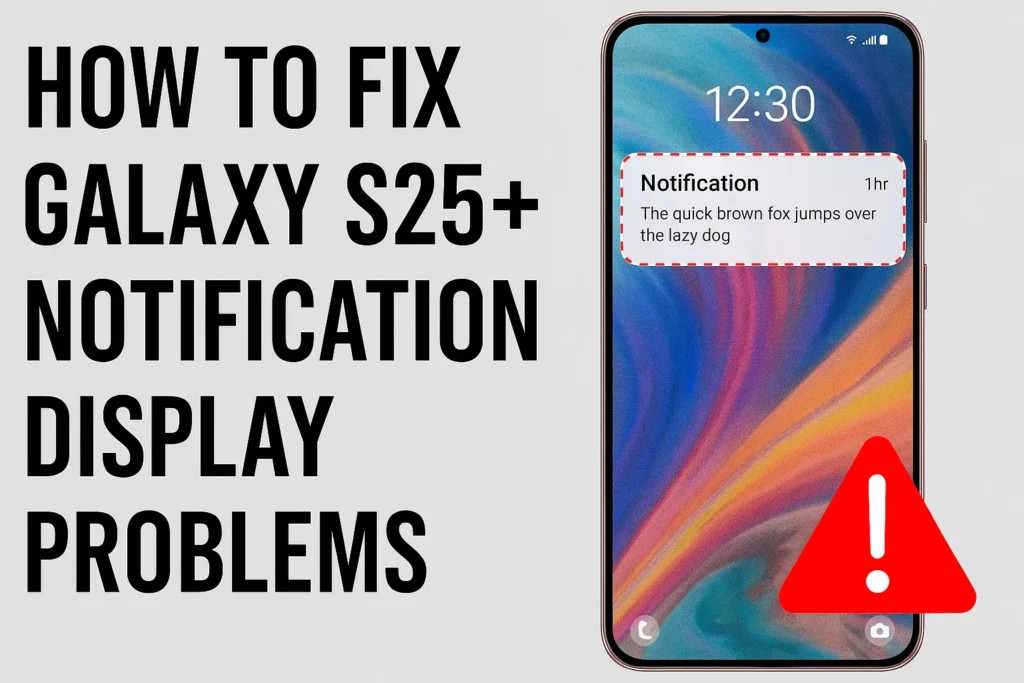
Notification Troubleshooting Recap
- Keep your system and apps updated
- Check notification and battery settings after every update
- Don’t use aggressive third-party cleaners
- Use Samsung Device Care for regular checks
- Soft reset before attempting a factory reset
4. Advanced Troubleshooting and Scenario-Based Solutions
1) Troubleshooting Notifications for Specific Apps
Sometimes, notification issues affect only one or two apps. For instance, banking or secure messaging apps might use their own notification channels or stricter background data rules. Start by clearing the cache for the problematic app (Settings > Apps > [App Name] > Storage > Clear Cache). If issues persist, uninstall and reinstall the app to reset its configuration. For apps requiring real-time alerts—such as delivery tracking or alarm apps—double-check both in-app and system-level notification settings, as these may override device defaults.
Bluetooth keeps disconnecting, phone issue or car issue
Frequent Bluetooth disconnections are usually caused by either your phone or your car’s infotainment system. Since Bluetooth requires...
2) Network-Related Notification Problems
A weak Wi-Fi or mobile data connection can cause delayed or missing notifications, especially for apps relying on push services (e.g., Gmail, Facebook Messenger). If you suspect network issues, switch between Wi-Fi and mobile data to check for improvements. Consider resetting your network settings (Settings > General Management > Reset > Reset network settings). Also, check that Data Saver mode is disabled, as it can restrict background data and stop notifications from arriving on time.
3) System App Conflicts and Overlay Issues
Occasionally, system-level features or accessibility apps can interfere with notification delivery. For example, using multiple security or overlay apps (such as screen recorders or floating widgets) may block banners and lock screen alerts. Try disabling accessibility services that are not essential (Settings > Accessibility > Installed Services) and restart your device. If the problem started after installing a specific app, uninstall it and check if notifications return to normal.
| Scenario | Problem | Quick Fix | Pro Tip |
|---|---|---|---|
| Messaging Apps | No pop-up or badge | Enable all notifications and unrestricted battery | Check in-app settings too |
| Banking Apps | No transaction alerts | Allow all permissions | Re-login after setting changes |
| Social Media | Delayed notifications | Disable background limits | Turn off Data Saver |
| All Apps | System-wide issues | Restart and update device | Clear system cache |
Key Takeaways for Advanced Users
- Reset app preferences if multiple apps have issues
- Use Safe Mode to rule out third-party interference
- Monitor notifications after each major change
- Back up data before making system resets
- Ask Samsung Support if issues persist post-reset
5. Real User Experiences and Feedback-Based Solutions
1) What Users Say About the Latest Updates
Many Galaxy S25+ users have noticed that software updates sometimes cause notification settings to revert or introduce new bugs. Monitoring user forums and communities can provide helpful workarounds. If a new update causes notification issues, consider rolling back if possible or wait for a patch. Always review “What’s New” notes in Samsung updates for relevant bug fixes.
2) Lessons from Community Solutions
Online communities often uncover creative solutions before official fixes are released. For example, some users solved persistent banner problems by toggling dark mode on and off, or by disabling and re-enabling Edge Panels. Others report that setting app notifications to “Silent” and then back to “Alert” mode can resolve stubborn issues. Don’t hesitate to experiment with these tips, as real-world feedback is sometimes ahead of official guides.
3) When to Contact Samsung Support
If all troubleshooting steps fail, contact Samsung’s official support channels. Prepare device logs, software versions, and screenshots of your settings to help technicians quickly diagnose the issue. You can also use the Samsung Members app to submit error reports and receive updates about ongoing issues with the Galaxy S25+.
| Feedback Type | Common Solution | Community Rating |
|---|---|---|
| Delayed Notification | Unrestricted background data | ★★★★☆ |
| Banner Not Showing | Toggle pop-up on/off | ★★★☆☆ |
| Lock Screen Alerts | Check privacy and DND | ★★★★☆ |
| Persistent Bugs | Report to Samsung Members | ★★★☆☆ |
Essential Checklist Before Seeking Help
- Update software and check for hotfixes
- Document your current notification and battery settings
- Try Safe Mode to isolate problematic apps
- Keep records when contacting support
- Share solutions with the user community
Galaxy S25+ Notification Display Problems FAQ
Q1. Why am I not receiving any notifications on my Galaxy S25+?
Check if Do Not Disturb mode is on, review your notification permissions in Settings, and ensure battery optimization isn’t limiting background activity for key apps. These steps resolve most missing notification issues quickly.
Q2. How do I fix delayed notifications for messaging apps?
Disable battery optimization for messaging apps, allow unrestricted background activity, and make sure Data Saver mode is off. Restart your device after changing these settings for best results.
Q3. Notifications show up but not on the lock screen—how can I fix this?
Go to Settings > Notifications > Lock Screen Notifications, and select “Show content.” Also, confirm that privacy settings and app permissions allow lock screen visibility.
Q4. My banner notifications suddenly stopped. What should I do?
Check each app’s notification settings and ensure “Show as pop-up” is enabled. Try toggling the option off and on again, then restart your device. If the issue persists, update your phone to the latest software version.
Q5. After a software update, notifications don’t work right—what now?
Major updates can reset notification and battery settings. Revisit all notification settings for your apps, adjust background data preferences, and clear your device’s cache partition to resolve lingering issues.
함께 읽으면 좋은 글
관련된 인기 콘텐츠를 확인하세요